Dillner's Accounting Tools > section > Mobile App
Mobile App - Getting Started
This app gives you seamless access to your portal from anywhere, anytime, making it easier than ever to stay connected with your Accounting offices!
Getting Started
- Download our Secure Client Portals Mobile App from the Google Play Store (Android) or the App Store (iOS).
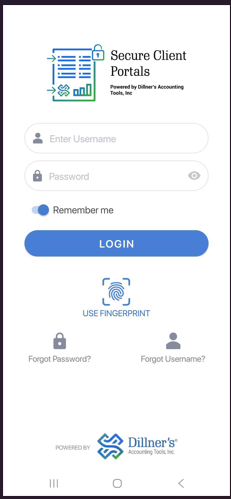
- To access the Client Portals Mobile app, enter your User Name and Password using the same login credentials as the Web version.
- To stay logged in throughout the day, tap the “Remember Me” slider button located below the password field before signing in.
- Tap the Login button or the "Use Fingerprint" if biometric authentication is enabled on your device.
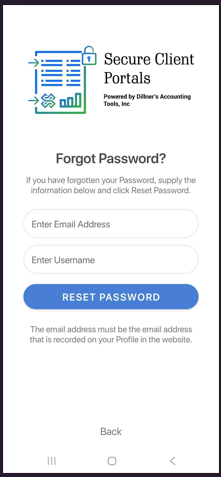
- Tap "Forgot Password" to reset the password. The email address and User Name will be required to receive the Reset Password email.
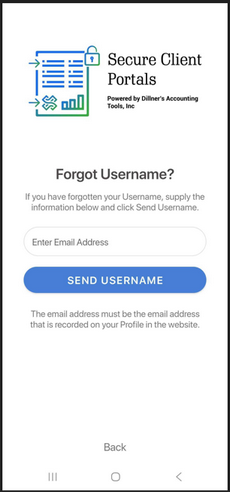
- Tap "Forgot Username" to receive the Username email. The email address used to set the portal up will be required to receive the Username email.
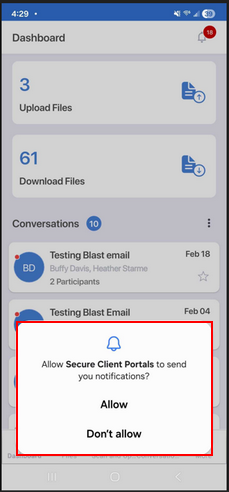
- Upon logging into the Mobile App, the Dashboard will display with a pop-up message: "Allow Secure Client Portals to send you notifications?"
- Tap “Allow” to receive email notifications in the Mobile App from your Accounting Office when files are uploaded for you.
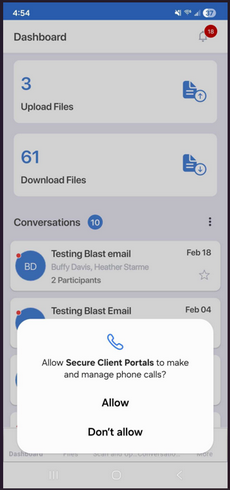
- The next pop-up will read "Allow Secure Client Portals to make and manage phone calls?"
- Tap “Don't Allow”, as the phone option is not available.
If you have any questions or experience issues during the login process, please contact your Accounting Office for assistance.
Comments
0 comments
Article is closed for comments.